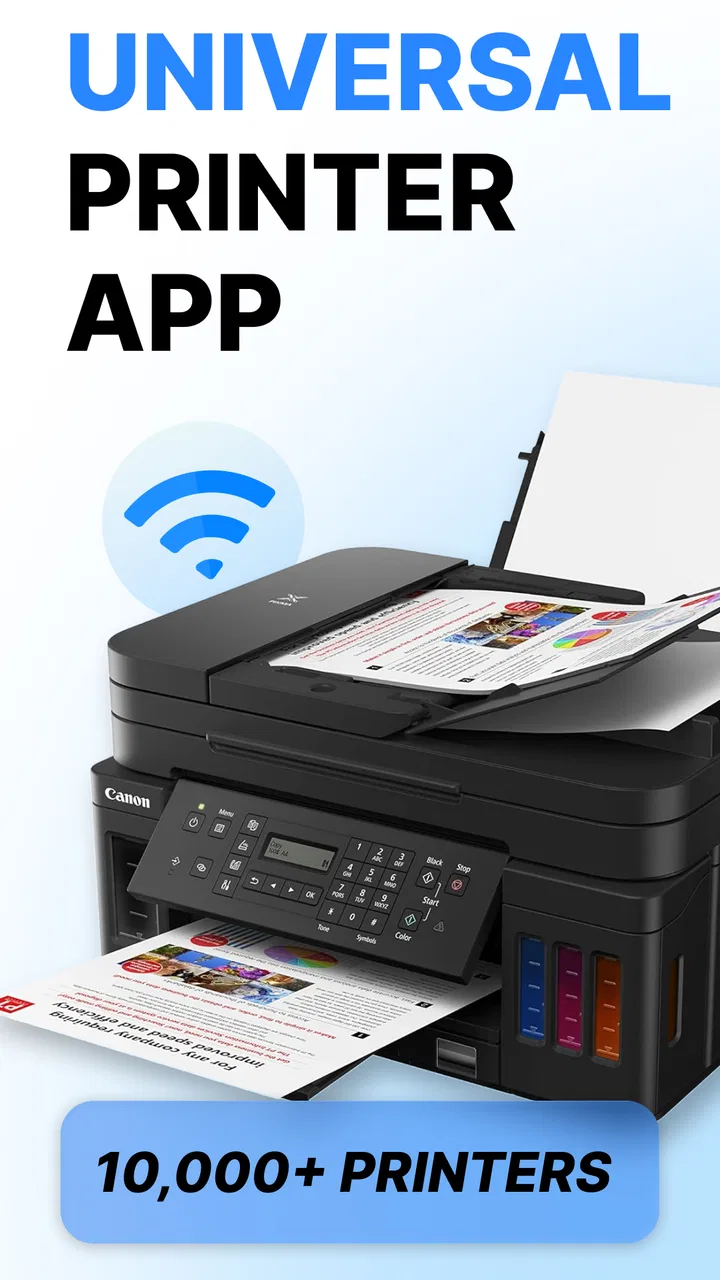
Printer: Smart Print App
- 4.8
- Rating
- 100.00K
- Installs
- Free
- Price

 Analysis by App-foxy
I approached Printer: Smart Print App as a practical phone tool rather than something flashy: the kind of app you open when a document needs to be on paper quickly and the printer is not cooperating. Its purpose is straightforward, but printer apps often succeed or fail in the small details around connection, file selection, and recovery when a job stalls. My experience is that this app is most useful when you want a simpler path from a phone document to a compatible printer, without moving the file to a computer first.
It sits in the tools category and is developed by iKame Applications - Begamob Global. The app is free to install, aimed at Everyone, and supports devices running Android 7.0 or later. It has reached more than 100 thousand installs and holds a 4.8 average from roughly 4.9 thousand ratings, which suggests that the basic idea is appealing to many users. The current release is version 1.0.6, and optional purchases range from $3.99 to $49.99 per item, so I would pay attention to any upgrade screen before confirming a purchase.
Where printing usually gets stuck
The first thing I would tell a friend is not to judge the app too quickly if the printer does not appear immediately. A phone-to-printer job involves several separate links: the phone must be connected to the right network or communication path, the printer must be awake and available, and the selected document must be readable by the app. When one of those pieces is wrong, the screen can make the problem feel like an app failure even when the printer or network is responsible.
You May Also Like

 Blood Strike: 2.5 Anniversary
Blood Strike’s Loadouts Turn Every Drop Into a Tactical Gamble
A close look at Blood Strike’s custom loadouts: how fast access to signature weapons reshapes its battle royale rhythm, rewards preparation, and narrows the gap between fights.

 Pandora - Music & Podcasts
Pandora’s Music Is Easy to Start, but Harder to Recover
Pandora’s strength is its low-effort path from a seed to a station. Its weak spot is how much confidence it asks you to place in connection, setup, and quiet recovery.

 8 Ball Pool
 Is Built on Rivalries, Rematches, and Routine
A close look at the rivalries, rematches, shared routines, and unanswered safety questions that turn a quick pool match into a persistent mobile community.

 Samsung Music
’s Quiet Strength Is Playing What You Already Own
Its reach comes less from spectacle than from dependable access to a personal library. That simplicity is both the app’s strongest retention engine and its ceiling.

 AccuWeather: Weather Radar
AccuWeather Review: A Quick, Clear Forecast for Everyday Decisions
For everyday plans, the best forecast is the one you can understand quickly. AccuWeather makes rain timing, radar, and local conditions easy to act on, with a few trade-offs.

 Hill Climb Racing
Why Hill Climb Racing Still Turns Crashes Into One More Run
A tiny car, a bumpy hill and one more upgrade: Hill Climb Racing keeps resurfacing because its simple chaos makes every near-miss feel personal.
More From Our News Desk



That is why I recommend starting with a small, ordinary document instead of a large photo collection or a long file. A single-page test gives you a clean answer about whether the connection works. It also avoids wasting paper while you are still figuring out the workflow. Once that test succeeds, move on to the real job. This simple habit is more useful than repeatedly pressing the print command and hoping the next attempt behaves differently.
Another common sticking point is choosing the file. A document may be visible in a cloud service, a messaging conversation, a downloads folder, or an office app, but visibility does not always mean it is ready for another app to use. I find it safer to save the file locally first, then open Printer: Smart Print App and select it from a clear location. That creates fewer handoffs and makes it easier to identify whether the issue is the file itself or the printer connection.
Photos can also create confusion because a picture that looks perfect on a phone screen may not fit the paper as expected. Before sending several images, I would print one sample and check orientation, cropping, and margins. If the result is not right, changing the image or paper arrangement is usually more productive than assuming the printer utility has damaged the file.
The most useful early check is a one-page test print. It separates connection problems from document problems and helps prevent a queue full of duplicate jobs. This matters especially when the first command appears to do nothing and a user taps the button several times. A delayed printer can later receive all those requests together.
What to check before opening the print screen
I would begin with the printer itself. Confirm that it is powered on, has paper, and is not showing a warning that needs attention. If the printer has been idle for a while, waking it manually can help. I would also check that the phone is connected to the same home or office network intended for the printer. Guest networks, mobile data, and separate wireless bands can make two devices appear close while preventing them from communicating properly.
Next, keep the first test uncomplicated. Use a small local document with a familiar format rather than a file that still needs to download. If the app can see the printer but cannot process the file, try another document. If it cannot see any printer at all, focus on the network and printer state before changing the document.
It is worth closing other apps that may be holding the same file open, particularly when the document came from an email attachment or a chat. I would not delete the original. Instead, I would make a fresh local copy with a simple filename and try again. This is a modest troubleshooting step, but it removes confusing characters, incomplete downloads, and temporary file issues from the test.
Keep the phone reasonably close to the wireless router and the printer during setup. Distance is not always the cause, but reducing it removes one variable. If the printer has recently changed networks, reconnecting it to the intended network may be necessary. The app can only work with a printer that the phone can reach; it cannot repair a printer that is offline or attached to a different network.
A calmer setup routine
My preferred routine is to prepare the file first, wake the printer, check the phone’s network, and only then open the print workflow. I avoid switching between networks halfway through the process. If the phone changes from Wi-Fi to mobile data or joins another access point, the printer may disappear even though both devices are functioning normally.
When the printer appears, I would select it once and give the app a moment to respond. Repeated taps can create uncertainty about whether the command was accepted. If a print preview or settings screen is available, inspect the basic choices before sending the job. Paper orientation is particularly important for landscape documents and wide images, while scaling can affect whether a page is clipped.
I also recommend checking the number of copies before confirming. A phone screen is small, and it is easy to overlook a setting after changing another option. For an important document, one test page is cheaper and less frustrating than discovering a layout mistake after printing an entire set.
Because the app is free to start using but includes optional in-app purchases, I would treat any premium prompt as a separate decision from the basic print task. Read the wording on the screen and make sure you understand what is being offered before proceeding. A user who only needs occasional printing may not need to pay for extras, while someone who uses the tool regularly may decide that an upgrade is worthwhile. The important point is to avoid assuming that every button is part of the necessary printing path.
Privacy-conscious users should also take a moment to understand the screens shown during setup and file selection. Keep sensitive documents in a controlled folder, avoid printing confidential material on a shared printer, and remove temporary copies from public or borrowed devices afterward. These are sensible habits with any mobile printing tool, not just this one.
Recovering a failed or delayed print job
When a job does not come out, I would first look at the printer rather than immediately sending it again. Check whether it is paused, out of paper, showing a cartridge warning, or holding an earlier job. A printer queue can make a successful command look broken because the machine is still processing something that was sent before.
If the app seems frozen, close it normally and reopen it. Then repeat the one-page test instead of resending the full document. If the printer still does not appear, restart the phone and printer, and verify the network again. This basic reset is not glamorous, but it often clears a stale connection more effectively than changing multiple settings at once.
One of the most practical recovery techniques is to change only one variable per attempt. For example, keep the printer and network unchanged while trying a different local document. If that works, the original file is the likely source of the trouble. Alternatively, keep the file unchanged while reconnecting the printer. This method takes a little patience, but it tells you what actually fixed the problem.
If a document is large or visually complex, create a simpler copy for testing. A plain text page can reveal whether the connection is healthy. After that, try the original file again. This is especially helpful when an image-heavy document takes longer to prepare and the user mistakes the delay for a failed command.
Do not keep pressing print while waiting. If the printer eventually receives delayed requests, you may end up with several identical pages. I prefer to wait briefly, check the printer’s physical status, and then cancel or clear an unwanted queue through the printer’s own controls when appropriate. The exact controls depend on the printer, so I would use its panel or companion instructions rather than guessing inside the phone app.
Separating app trouble from printer trouble
There are situations where Printer: Smart Print App is simply not the cause. If the printer cannot print a built-in test page or another device also fails to reach it, the problem is probably with the printer, network, paper, ink, or its own software. Installing the app again will not solve an empty tray or an offline printer.
The reverse is also true. If another phone can print the same file through the same printer, but this device cannot even find it, the phone’s network state or local setup deserves attention. I would compare the two devices carefully instead of changing the printer configuration immediately. This kind of comparison is one of the fastest ways to avoid unnecessary resets.
A file can be the real culprit when ordinary documents print but one particular attachment does not. In that case, save a new copy, simplify its filename, or export it into a more common document format using the app that created it. I would preserve the original and test the copy. If the copy prints, you have learned something useful without losing the source file.
For offices, schools, and shared homes, the printer may be deliberately isolated from personal devices. Network security settings can prevent discovery even when internet access works normally. That is an administrator or router issue, not a defect that a consumer printing app can reliably overcome. If the printer belongs to someone else, ask whether personal phones are permitted before spending time troubleshooting.
There is also a practical distinction between occasional convenience and dependable document management. Printer: Smart Print App is attractive when the job begins and ends with selecting a file and sending it to a nearby printer. If you need sophisticated page imposition, advanced color management, scanning archives, or a tightly managed office queue, the printer manufacturer’s software or a desktop workflow may be a better fit. Those alternatives can be less convenient, but they may expose controls that a lightweight phone tool does not emphasize.
Everyday situations where it earns its place
Imagine receiving a form while away from your computer and needing a signed paper copy before leaving home. I would save the attachment locally, wake the printer, run a one-page check if the setup is new, and then print the form. The value here is not that the app replaces every office function; it removes the extra step of transferring the file to a laptop.
It can also be useful for a parent printing a school notice, a traveler preparing a reservation document, or a small business owner producing a short invoice from a phone. In each case, the benefit is speed and convenience. The workflow works best when the file is already clean, the printer is familiar, and the user needs a modest number of pages.
I would be more cautious with confidential contracts, large batches, or documents requiring exact professional color. For those tasks, I prefer a controlled computer or the printer maker’s dedicated software, where the output settings and queue are easier to inspect. A phone is excellent for removing friction from a simple job, but convenience should not be confused with full production control.
Who should use it and who should look elsewhere
I think this app suits Android users who want a direct way to print from a phone and are comfortable doing a little network checking when the printer is not immediately visible. It is also a reasonable choice for households that print occasionally and do not want to move every file through a computer.
I would hesitate to recommend it as the only printing solution for someone managing many printers, complex office permissions, or highly specific output requirements. In those environments, a manufacturer’s utility or a desktop print system may provide clearer diagnostics and more specialized controls. Users who rarely print may also find that their printer’s existing app is enough, making a second tool unnecessary.
The age rating of Everyone makes the app approachable for a broad audience, but ease of use still depends on the surrounding equipment. A child or less technical family member may be able to select a document, yet an adult may need to handle network changes, paper issues, or purchase prompts. The app can simplify the front end without eliminating the practical responsibilities of owning a printer.
My practical verdict
After looking at the complete printing path, I see Printer: Smart Print App as a useful convenience tool rather than a universal answer to every printer problem. Its strongest role is helping a phone user handle an ordinary document without reaching for a computer. The experience becomes much smoother when the printer is already online, the file is stored locally, and the first attempt is treated as a controlled test instead of a race to resend the job.
I like the idea of keeping a short recovery routine: confirm the printer is awake, check the phone’s network, test one page, and change only one variable when something fails. Those steps make the app feel more dependable because they prevent unrelated printer and file problems from being blamed on the wrong component.
My recommendation is therefore conditional but positive. Try it if your main need is occasional mobile printing and your printer is compatible with your normal network setup. Before relying on it for an urgent or confidential batch, perform a small test and learn how your particular printer behaves. If you need advanced layout, professional color control, or centralized office management, choose a more specialized alternative instead. For everyday phone-to-paper tasks, though, Printer: Smart Print App can be a sensible addition, provided you approach setup with a little patience and treat the printer itself as part of the system.
FAQs for Printer: Smart Print App
01What is Printer: Smart Print App and what can I use it for?
Printer: Smart Print App is designed to help you print documents, photos, web pages, and other files from a mobile device. After connecting your phone or tablet to a compatible printer, you can usually select content, adjust basic print settings, and send the job without using a computer. Its usefulness depends on printer compatibility, supported file formats, and the connection method available on your network.
02How do I connect Printer: Smart Print App to my printer?
In most cases, your mobile device and printer need to be connected to the same Wi-Fi network before the app can detect the printer. Open the app, allow the requested local-network or nearby-device permissions, and follow the printer-selection instructions. Some models may require a manufacturer service, Bluetooth pairing, or a direct Wi-Fi connection, so connection steps can vary depending on the printer brand and model.
03Which files and content can I print with the app?
The app is generally intended for common printing tasks such as photos, PDF files, text documents, and images saved on your device. You may also be able to print content shared from another application, including webpages or email attachments. Support is not identical for every format, however, and complex documents may display differently. It is best to preview the page and check layout, margins, and orientation before printing.
04Is Printer: Smart Print App free to download, and are there in-app purchases?
The application may be available as a free download, but some features can depend on advertising, premium access, subscriptions, or in-app purchases. Pricing and available plans may change by region and over time. Before confirming a purchase, review the store listing carefully to see whether advanced tools, ad removal, unlimited printing, cloud services, or additional printer features require payment.
05Why is my printer not appearing or why does a print job fail?
If the printer is not detected, first confirm that both devices are connected to the same Wi-Fi network and that the printer is powered on, online, and not showing an error. Restarting the app, phone, router, and printer can resolve temporary discovery problems. Also check permissions, update the app and printer firmware, and verify compatibility. Network isolation, VPNs, weak signals, low ink, paper shortages, or unsupported formats can also interrupt printing.
Pros
- Supports multiple printer brands and common wireless protocols.
- Quickly detects compatible printers on the same Wi‑Fi network.
- Prints photos
- documents
- emails
- and web pages from one app.
- Useful print preview helps avoid wasting paper and ink.
- Simple interface makes basic printing easy for nontechnical users.
Cons
- Some advanced features may require a premium subscription.
- Printer compatibility can vary by model and operating system.
- Scanning features may be limited compared with dedicated printer apps.
- Wireless printing fails if the phone and printer use different networks.
- Ads or upgrade prompts may interrupt the free version.

Printer: Smart Print App
Gallery